

iOS Version: iOS 26
Compatible Devices: iPhone, iPad, Mac (Apple Intelligence supported)
Apple’s iOS 26 quietly introduced one of the biggest upgrades to Siri—deep ChatGPT integration through Apple Intelligence. If you’ve been searching for how to replace Siri with ChatGPT, this guide explains the best and only working method right now.
While Apple doesn’t allow you to fully remove Siri, you can make ChatGPT handle most of your questions without permission pop-ups, making Siri feel dramatically smarter.

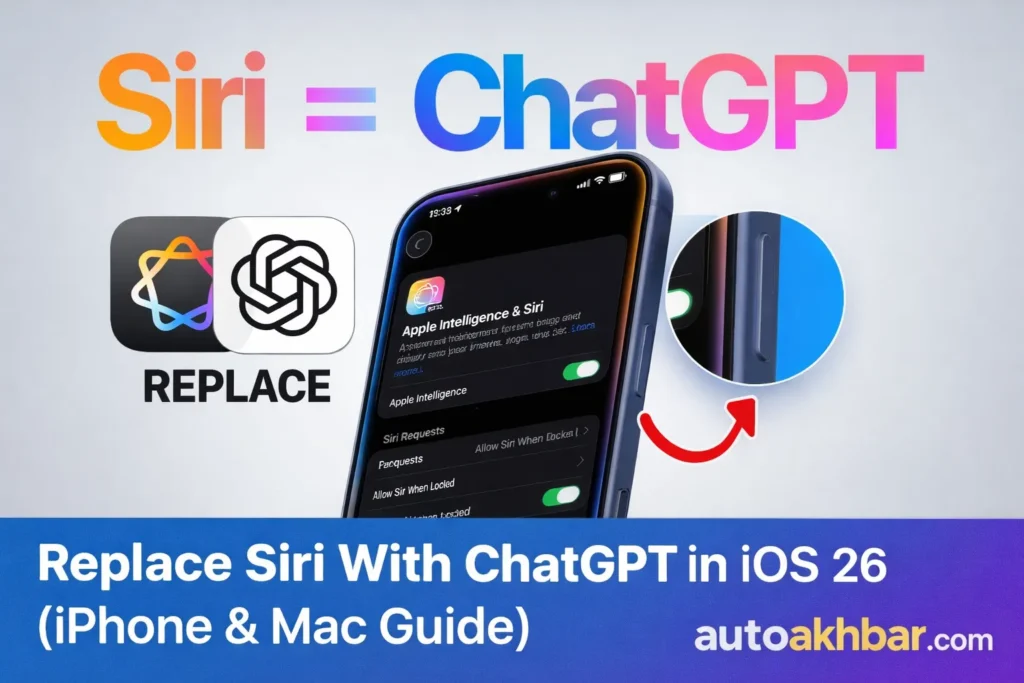
Table of Contents
Can You Really Replace Siri With ChatGPT?
Let’s be clear upfront:
- ❌ You cannot fully replace Siri
- ❌ You cannot change “Hey Siri” to “Hey ChatGPT”
- ✅ You can make ChatGPT answer automatically when Siri can’t
With the right settings, Siri instantly hands over your queries to ChatGPT—no interruptions, no confirmations.
That’s why people are searching:
- replace siri with chatgpt iphone
- is there a way to replace siri with chatgpt
- can siri be replaced with chatgpt
iOS 27: Apple’s Next Big Update Might Finally Fix Everything
Why People Want to Siri With ChatGPT
Siri struggles with:
- Context-based questions
- Latest information
- Detailed explanations
ChatGPT excels at:
- Natural conversation
- Up-to-date answers
- Complex queries
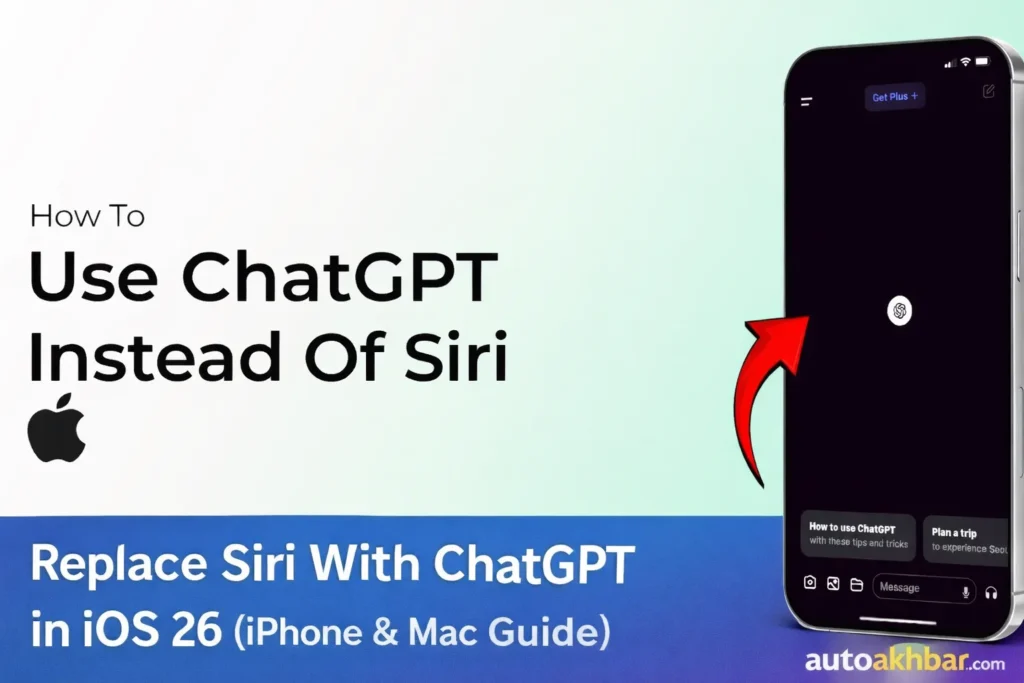
Apple’s solution in iOS 26 is not replacement—but integration, and it works surprisingly well.
How to Replace Siri With ChatGPT in iOS 26 (Step-by-Step)
Step 1: Make Sure Your Device Supports Apple Intelligence
This only works on:
- Apple Intelligence–compatible iPhones
- Supported iPads
- Macs running compatible macOS
Older devices may not support this feature fully.
Step 2: Sign In to ChatGPT on Your iPhone
- Open Settings
- Tap Apple Intelligence & Siri
- Scroll down and select ChatGPT
- Create or sign in to your ChatGPT account
This enables ChatGPT as Siri’s fallback assistant.
Step 3: Turn OFF “Confirm Requests” (Critical Step)
Inside the ChatGPT settings:
- Find Confirm Requests
- Toggle it OFF
Why this matters:
- When ON → Siri asks permission every time
- When OFF → Siri automatically uses ChatGPT
After disabling it, Siri responds with:
“Working with ChatGPT”
No permission prompts. Instant answers.
Real Example: Siri vs Siri + ChatGPT
Question:
“When is the next SpaceX launch?”
Before:
Siri asks for permission to use ChatGPT.
After:
Siri immediately says “Working with ChatGPT” and gives the answer.
This works for:
- Tech questions
- Event dates (WWDC, Apple launches)
- General knowledge
- Planning and productivity queries
Replace Siri With ChatGPT on iPhone 14 and iPhone 13
iPhone 14
✅ Works if Apple Intelligence is supported on your model.
iPhone 13
⚠️ Limited or unavailable, depending on Apple Intelligence support.
Hardware compatibility matters.
Replace Siri With ChatGPT Voice: Is It Possible?
No.
- Siri’s voice cannot be replaced
- ChatGPT responds through Siri’s voice
However, the intelligence upgrade is noticeable.
Replace Siri With ChatGPT Using Shortcuts (Optional)
Advanced users can:
- Use the Shortcuts app
- Trigger ChatGPT via side button or Back Tap
This still doesn’t fully replace Siri, but it improves accessibility.
How to replace Siri with ChatGPT as your voice assistant on iPhone
byu/rippen3 iniphone
Replace Siri With ChatGPT on Mac (macOS)
Yes, the same Apple Intelligence integration works on macOS.
Popular searches this satisfies:
- replace siri with chatgpt on mac
- macos replace siri with chatgpt
Will Apple Fully Replace Siri With ChatGPT?
As of now:
- ❌ No official plan
- ✅ Apple is moving toward multi-assistant support
Future updates may allow:
- Assistant selection
- Side button remapping
- Deeper AI integration
But today, this is the best possible setup.

Final Verdict
If you want Siri to feel modern, fast, and actually useful, integrating ChatGPT in iOS 26 is the smartest move.
You don’t replace Siri—you upgrade it.
No interruptions.
No permission pop-ups.
Just better answers.
FAQ
Can I replace Siri with ChatGPT on my iPhone?
Not fully—but almost. In iOS 26, Apple lets you use ChatGPT alongside Siri through Apple Intelligence. Siri still handles system tasks (calls, settings), while ChatGPT takes over smart answers, writing, and complex queries. Think of it as Siri + ChatGPT working together, not a total replacement.
How to use ChatGPT on iOS 26?
Using ChatGPT on iOS 26 is super easy:
1) Go to Settings → Apple Intelligence
2) Enable ChatGPT integration
3) Sign in or allow access (optional, depending on region)
4) Ask Siri anything complex—ChatGPT will respond automatically
No extra app needed. It feels native and smooth ✨
Why doesn’t Siri talk anymore on iOS 26?
Good question—this confused many users.
In iOS 26:
> Siri defaults to on-screen responses instead of voice
> This happens especially when ChatGPT handles the answer
> You can re-enable voice replies from Settings → Siri & Apple Intelligence → Voice Feedback
Apple is pushing silent AI replies for privacy and speed.
How to change Siri style in iOS 26?
Apple removed the old Siri orb style. In iOS 26:
> Siri now appears as a glowing edge animation
> You cannot manually change Siri’s visual style
> The new look adapts dynamically when ChatGPT is responding
Apple wants a cleaner, distraction-free AI vibe.